Navigation
Once you’re signed in, everything is reachable from the grouped navigation rail on the left. IntuneCommander organises roughly 68 features into nine sections you can expand and collapse.
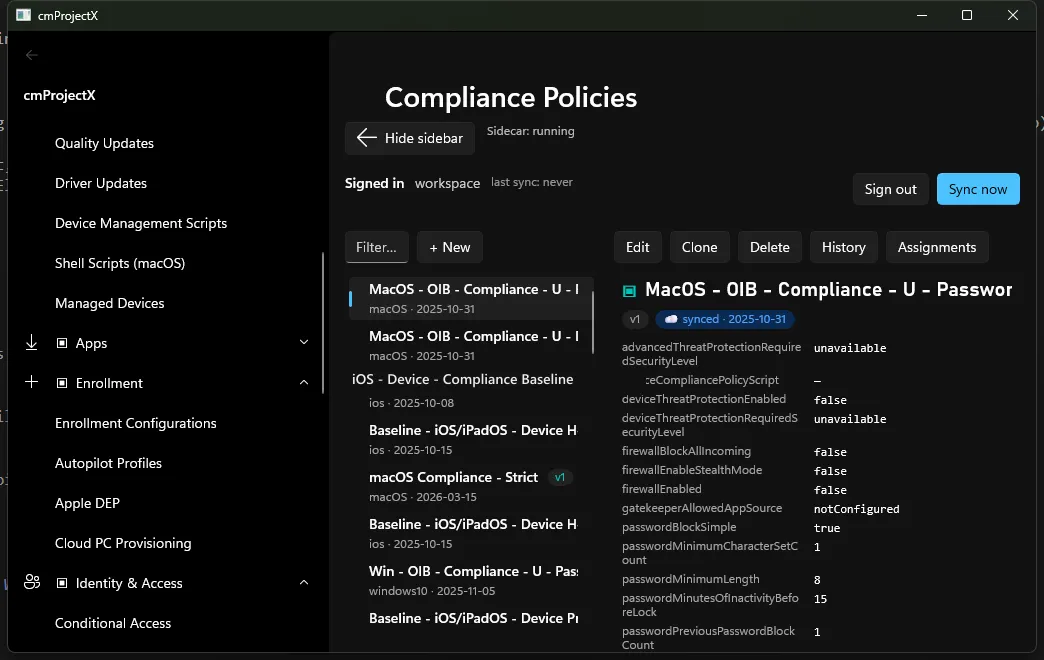
The nine sections
Section titled “The nine sections”| Section | What’s inside |
|---|---|
| Overview | Audit Timeline, Global Search, Dashboard, Security Posture |
| Devices | Configuration & compliance, Settings Catalog, Endpoint Security, scripts, Windows updates, managed devices |
| Apps | Applications, app protection & configuration, VPP tokens, bulk app assignment |
| Enrollment | Enrollment configurations, Autopilot, Apple DEP, Cloud PC provisioning |
| Identity & Access | Conditional Access, Named Locations, authentication strengths & contexts, Terms of Use |
| Tenant Admin | Scope tags, roles, branding, ADMX, reusable settings, notification templates |
| Groups & Monitoring | Groups, permission check |
| Drift & Compare | Drift detection, policy comparison, assignment explorer, baselines, backup/restore |
| Diagnostics | Log Explorer, Intune IME, dsregcmd, error-code DB, Event Log, Sysmon, Secure Boot, timeline |
Getting around
Section titled “Getting around”- Expand / collapse a section by clicking its header.
- Show / hide the sidebar with the toggle next to the page title to give a surface more room.
- The status bar always shows your sign-in state, the active tenant, and Sync now to refresh the audit/drift snapshots.
Next: Browse & view →