Browse & view
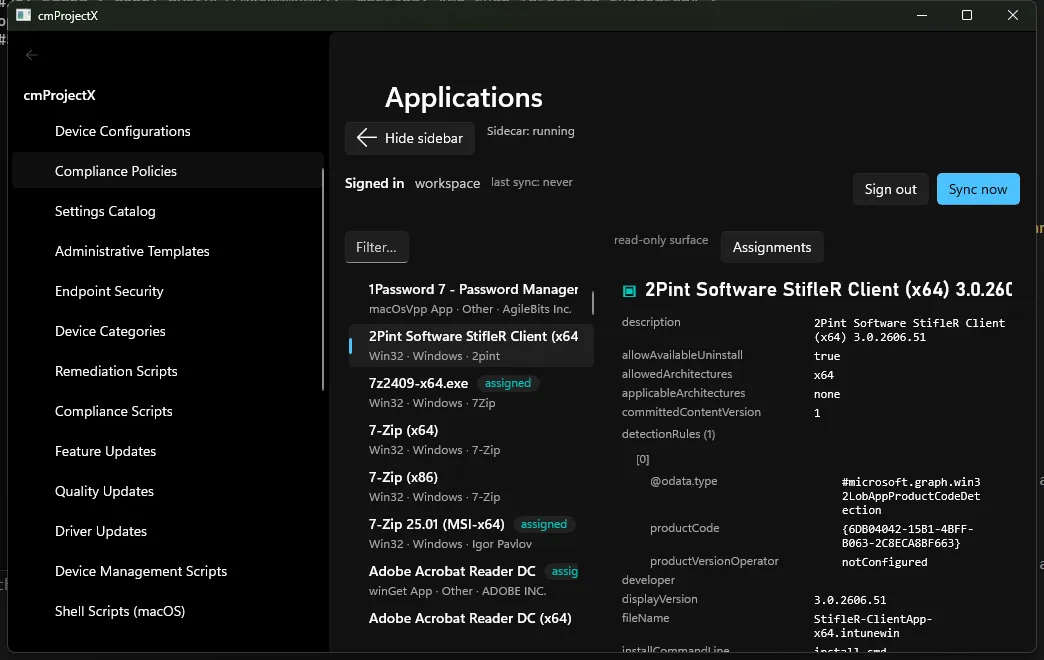
Every management surface works the same way: a list on the left, a detail pane on the right.
-
Pick a surface from the navigation — say Apps → Applications.
-
Scan the list. Each item is normalised to a tidy row — a title, a subtitle (platform, publisher, type), and sometimes a badge (e.g. assigned). Use Filter to narrow a long list.
-
Select a row. The detail pane shows the full object JSON exactly as Graph returns it — every property, ready to read or copy.
Read-only vs writable surfaces
Section titled “Read-only vs writable surfaces”Not every surface can be edited — some are read-only by design or by Graph’s shape:
- Read-only (view + actions only): Conditional Access, VPP Tokens, Apple DEP, Cloud PC provisioning, Assignment Filters, Policy Sets, Managed Devices, and Applications (creating an app is a content-upload flow, out of scope — but you can still view and assign).
- Writable: most configuration, compliance, security, script, update, and tenant-admin surfaces. A writable surface shows an Edit / Clone / Delete toolbar — see Edit safely.
Next: Edit safely →